



Inhalte
About the integration
What it does
How it works?
Requirements
How to set it up
FAQs
About the integration
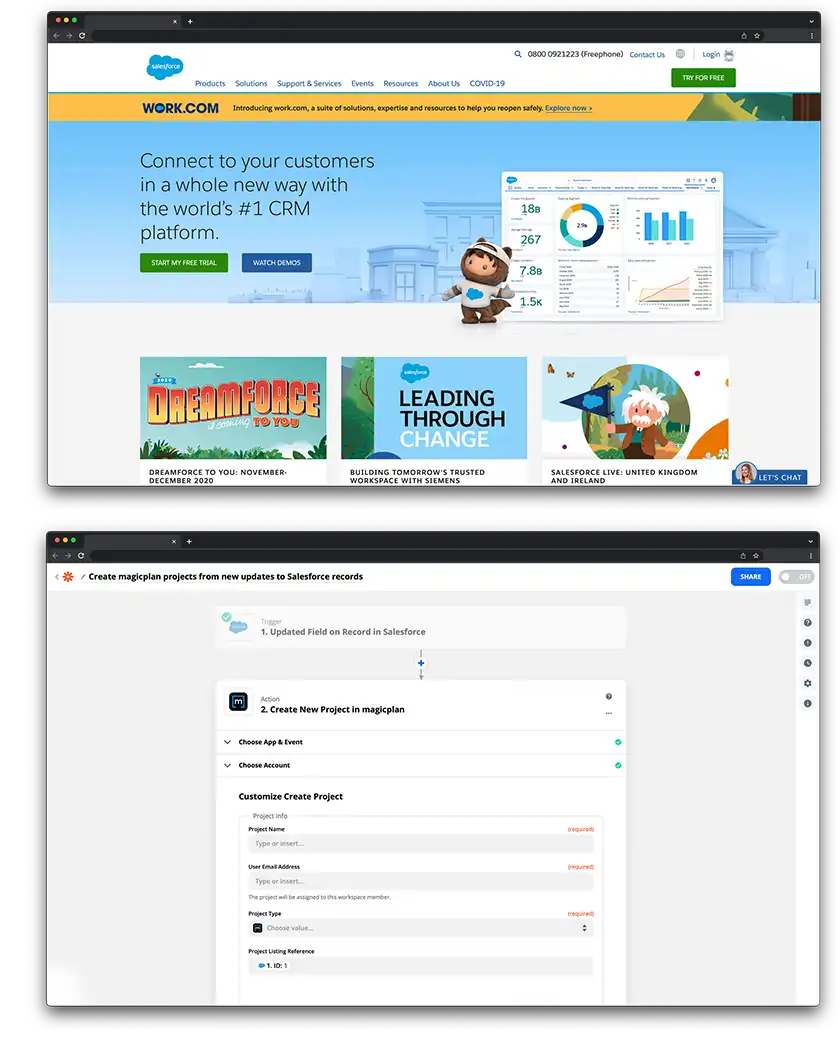
Connect Salesforce with magicplan to link your customer relationship data with on-site project files. This integration allows you to automate data entry between platforms. You can create projects in magicplan based on Salesforce triggers and save finished floor plans directly to your Salesforce records.
What it does
Create a new magicplan project automatically when a Salesforce record is created or updated.
Populate magicplan project forms with customer data found in Salesforce.
Upload magicplan PDF reports and images to Salesforce as attachments.
Update the status or stage of a Salesforce deal when a magicplan project is exported.
How it works?
This integration uses Zapier to bridge the two applications. You create workflows called "Zaps" that define a trigger and a resulting action. For example, when you add a new lead in Salesforce (Trigger), Zapier sends that data to magicplan to create a new project folder (Action).
Requirements
Active magicplan account
Active Salesforce account
Zapier account
How to set it up
Log in to your Zapier account.
Click "Create Zap" to start a new workflow.
Search for "Salesforce" in the trigger step and select an event, such as "New Record."
Log in to your Salesforce account to authorize the connection.
Search for "magicplan" in the action step and select an event, such as "Create Project."
Log in to your magicplan Cloud account to authorize the connection.
Map the fields from Salesforce (like Name and Address) to the corresponding fields in magicplan.
Test the integration to ensure data flows correctly.
Publish the Zap to turn on the automation.