How to Enhance Team Collaboration with magicplan
Inside magicplan
4 min read
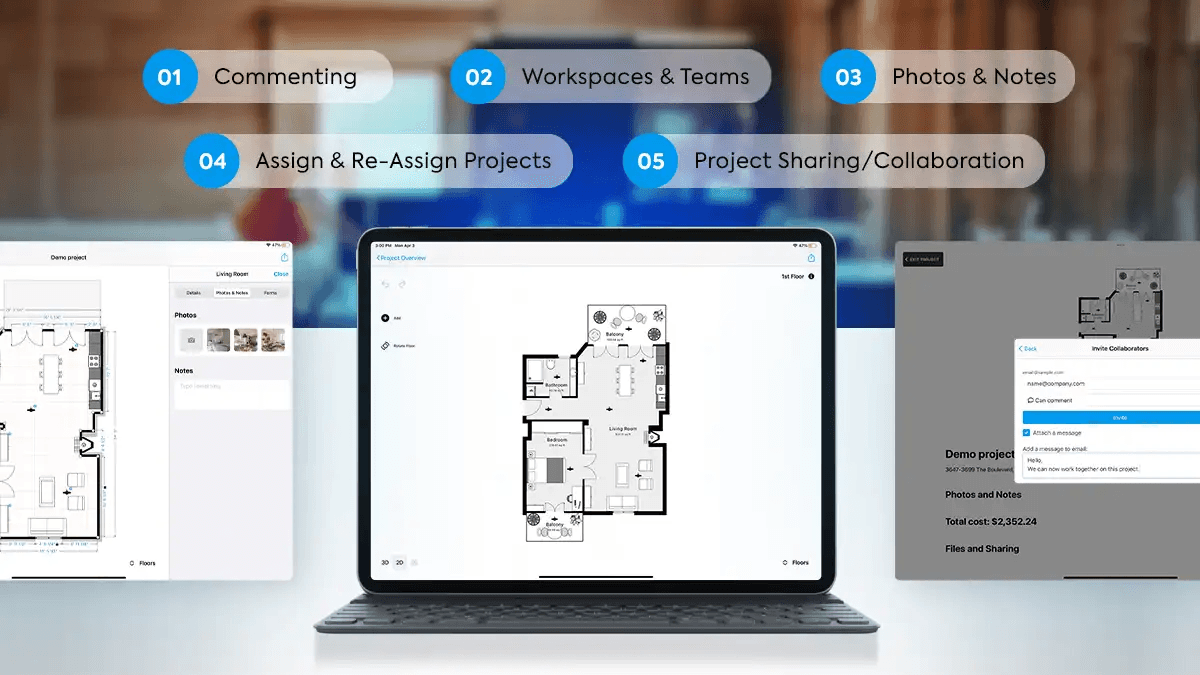
Managing projects across a team, especially with members working at different sites, can be cumbersome. Luckily, magicplan has a variety of tools to help organize and keep your team’s projects on track. Let’s dive into some key features that make project management with magicplan easier for you!
Workspaces & Teams
Workspaces & Teams allow you and your colleagues to create and save floor plans all in one place, enhancing project organization and collaboration. Think of a Workspace as your company, and Teams as the departments within your company. All of your magicplan users can be invited to a Workspace, create projects within the Workspace in the app, and then see their and everyone else’s projects in the Workspace from the magicplan Cloud.
But, say you have different groups of magicplan users working across multiple office locations or handling different types of projects. In such cases, you can streamline your tracking process by organizing these groups into Teams within your Workspace. This structure will make it easier for you and the Team members, to filter through a specific Team’s projects and track their progress.
A member of a Workspace or Team can view details of any project saved within it in the magicplan Cloud. Details include:
Floor plan sketch in 2D, 3D and elevation view
Project statistics such as surface area, room dimensions, and ceiling height
Photos & Notes added to a floor plan
File exports
Filled out Custom Forms
Project price estimate
By subscribing to magicplan directly, you'll gain enhanced access to the Workspaces & Teams feature. Keep in mind that any user invited to join a Workspace or Team must also have a subscription. Discover more about magicplan's Workspaces & Teams.
Assign & Re-Assign Projects
Once you have added members to your Workspace or Team, you can then assign them to projects directly from the magicplan Cloud so they know exactly what they need to be working on. To assign them to a new project, all you need to do is create a new project from the “Projects” page by clicking the plus sign (+) icon and then complete the fields. There is even an option to notify the assignee with a personalized email message about the project.
There may be times when a project needs to be handed over from one team member to another. This is where it’s helpful to re-assign a project to another magicplan user. This can be done within the project in the cloud under the settings wheel and “Edit project Assignee”. Once a project is reassigned to another magicplan user, that user can open and edit the most recent version of the project in the app on their device.
Photos & Notes
Unfortunately, you can’t be in two places at once. Photos & Notes give you and your team more information about a project, proving especially useful when you haven’t seen a site in person or need to remember specific details about the floor plan. Photos & Notes can be added to the project, floor, room, and even object level of a project, giving the flexibility to add as much detail as you need for each project.
Photos & Notes are available for Report and Estimate subscription tiers.
Commenting
Magicplan’s Commenting feature is a great way to enhance collaboration across your team, and gives you the ability to communicate more directly with your team about the projects they are working on. Workspace & Team members can comment on projects from the magicplan Cloud, depending on the Project Sharing Settings. You can even make it so people who are not part of your Workspace or Team can add comments when you share your project link.
Comments can be added to any structural or furniture object, wall, room, or floor to make suggestions or discuss changes that need to be made. Magicplan users can be tagged in comments and will receive an email notification so they can respond promptly.
Learn more about magicplan’s Commenting feature.
Sharing & Collaboration
Workspaces & Teams may not apply to your use of magicplan. Maybe you are a team of one or don’t need to regularly access other people’s projects; however, you still need to manage projects with other stakeholders. There are ways that you can easily share projects, receive projects, and make use of features like Commenting!
“Share Project” allows you to share your project with any stakeholders via a web browser link. Anyone with the link can view your project sketch, various details of the project, and even leave comments depending on the settings you enable. You can learn how to share projects from the app or cloud here.
In the case that you are collaborating with specific individuals on a project, you can make use of “Invite Collaborators.” This feature enables a magicplan user outside of your Workspace to view and comment on the projects they are invited to in the magicplan Cloud. Learn more about how to invite a collaborator.
Last, but not least, there may be a case where you need someone to add to or edit the floor plan you created. You can share your project via email with another magicplan user, which sends them a copy of the project that they can then work on in the app on their device. Their version of the project can be shared with you with any of the options we’ve outlined. Here is information on how you can make use of “Share via email.”
Conclusion
As you can see, there are many features available in magicplan to help you manage projects across your team or individually. Think about what would benefit your workflow and then start implementing some of the tools available to you!
Share

Georgia O'Farrell
Director, Growth Enablement