



Contents
About the integration
What it does
How it works?
Requirements
How to set it up
FAQs
About the integration
This integration connects Google Sheets with magicplan to automate data entry and project tracking. It allows you to log project details, customer information, and file links directly into spreadsheets for analysis and reporting.
What it does
Add a new row to a Google Sheet automatically every time a magicplan project is exported.
Log customer contact information and property addresses from magicplan into a centralized spreadsheet.
Track project completion dates and file links in Google Sheets for project management oversight.
Create new magicplan projects automatically when you add a new row of data to a Google Sheet.
How it works?
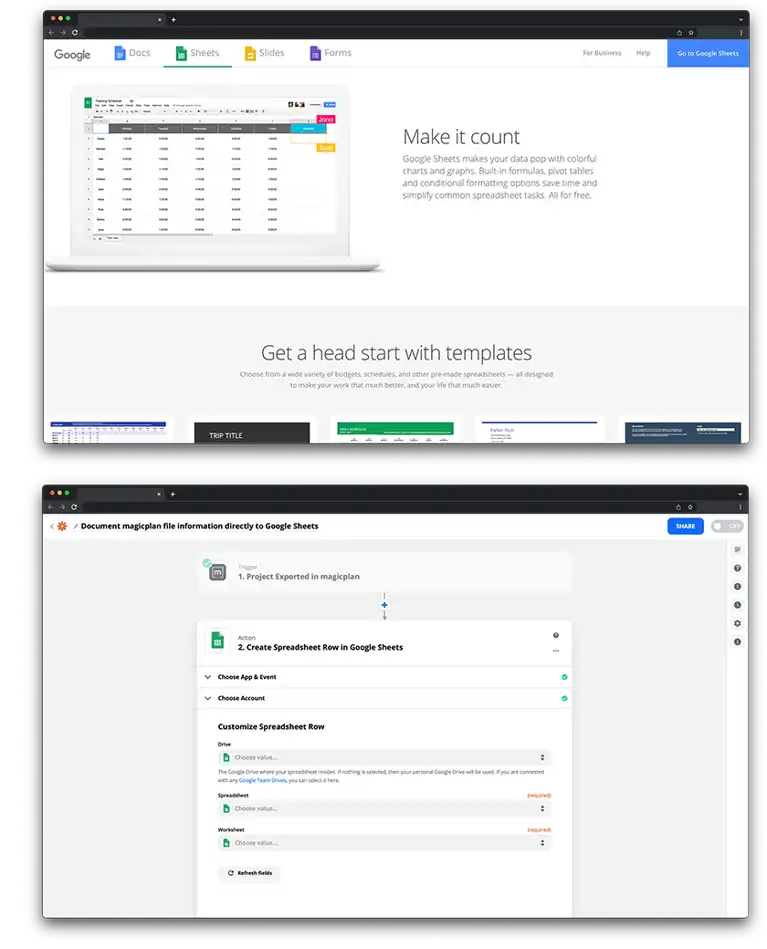
The connection uses Zapier to link Google Sheets and magicplan. When a trigger event occurs, such as exporting a project in magicplan, Zapier sends the project data to a specific spreadsheet. Alternatively, adding data to a spreadsheet can trigger the creation of a new project in magicplan.
Requirements
Active magicplan account
Google account
Zapier account
How to set it up
Log in to your Zapier account.
Select magicplan and Google Sheets from the app list.
Choose a trigger, such as "New Export" in magicplan or "New Spreadsheet Row" in Google Sheets.
Choose the corresponding action, such as "Create Spreadsheet Row" or "Create Project."
Log in to your Google and magicplan accounts to authorize access.
Select the specific spreadsheet and worksheet you want to use.
Map the magicplan data fields to the correct columns in your Google Sheet.
Test the connection to ensure the data populates correctly and turn on the Zap.