



Contents
About the integration
What it does
How it works?
Requirements
How to set it up
FAQs
About the integration
This integration connects Google Drive with magicplan to automate file storage and organization. It allows you to sync floor plans, reports, and site photos directly to your cloud storage folders.
What it does
Upload exported magicplan PDF files and reports automatically to Google Drive.
Save photos taken within magicplan projects to designated Google Drive folders.
Create new Google Drive folders automatically for every new magicplan project.
Share project files with team members by centralizing exports in shared Google Drive locations.
How it works?
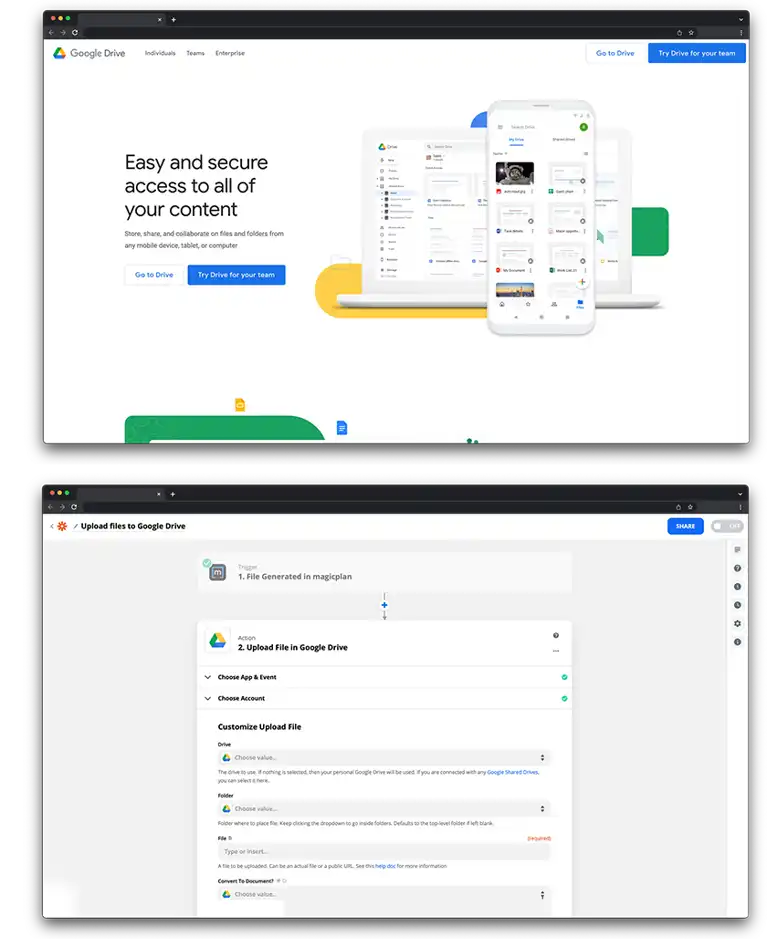
The connection uses Zapier to bridge magicplan and Google Drive. When you export a file or complete a project in magicplan, Zapier detects the new data and transfers the files to your selected Google Drive account based on the rules you establish.
Requirements
Active magicplan account
Google account
Zapier account
How to set it up
Log in to your Zapier account.
Select magicplan and Google Drive from the list of apps.
Choose a trigger from magicplan, such as "New Export."
Choose an action for Google Drive, such as "Upload File."
Follow the prompts to authorize your magicplan and Google accounts.
Select the specific Google Drive folder where you want your files to be stored.
Map the file data from magicplan to the Google Drive upload fields.
Test the connection to confirm the file appears in your drive and turn on the Zap.